




- Published on: 2026-11-09 15:39:00
How to Secure Your Account with Two-Factor Authentication (2FA)
In today's digital world, a strong password is a great start, but it is no longer enough to guarantee the complete security of your trading account. That is why we strongly recommend enabling Two-Factor Authentication (2FA), an extra layer of security that ensures only you can access your funds.
So, what is 2FA? It is a simple but powerful security system that requires two forms of verification: something you know (your password) and something you have (your phone). This guide will show you how to set up 2FA on your TradingPRO account using an authenticator app.
Before You Begin: Get an Authenticator App
To get started, you will need an authenticator app on your smartphone. These apps generate time-sensitive, 6-digit codes that act as your second "key." While there are many options, we recommend trusted applications like:
- Google Authenticator (for iOS and Android)
- Microsoft Authenticator
- Authy
For this guide, we will use Google Authenticator as the primary example.
The Step-by-Step Guide to Enabling 2FA
Follow these simple visual steps to add a powerful layer of security to your account.
Step 1: Navigate to Your Profile Settings
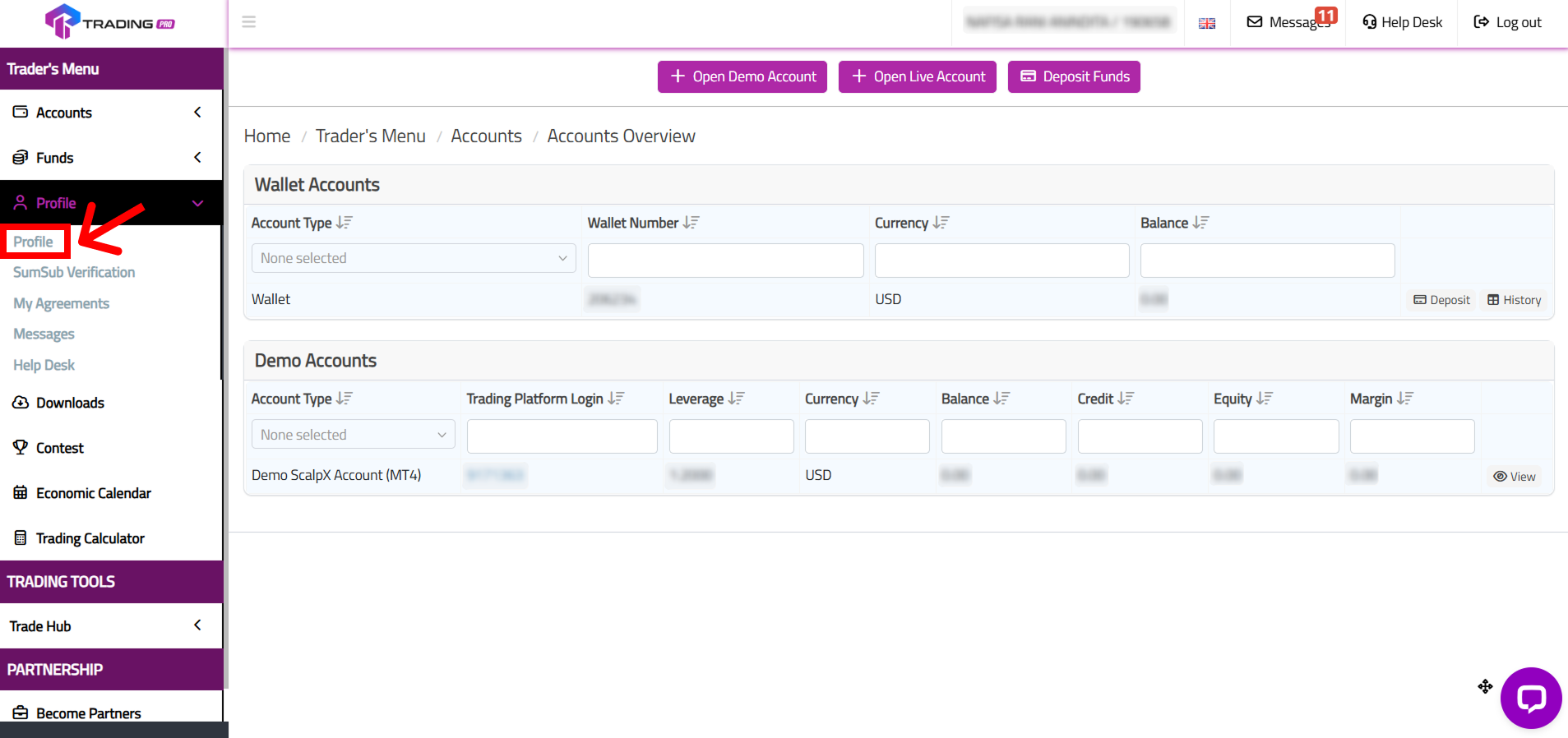
First, log in to your TradingPRO Client Portal using your email and password. Once you are on the main dashboard, locate and click on the 'Profile' menu in the top-left corner. From the dropdown that appears, click on 'Profile' again.
Step 2: Access the 2FA Settings
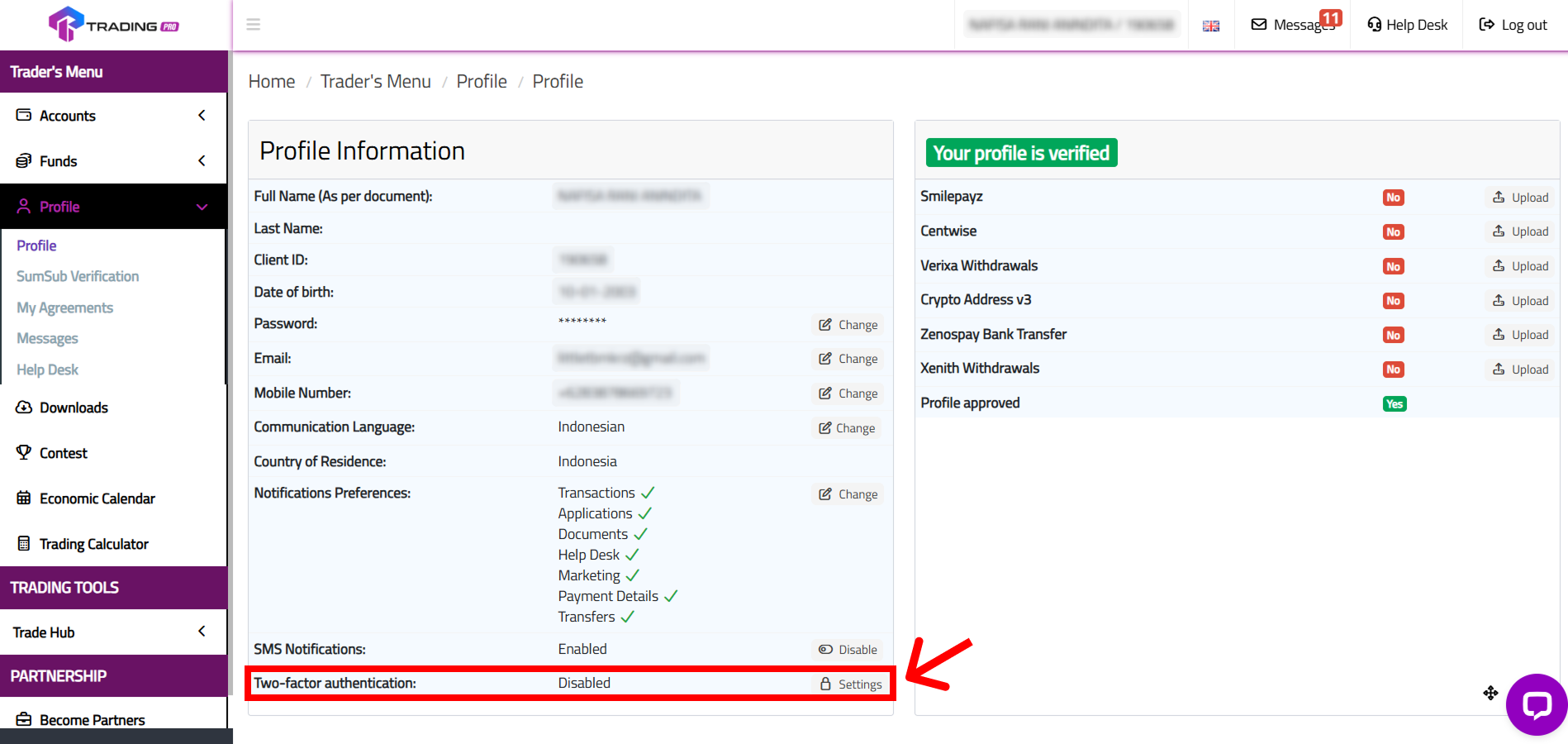
In your profile menu, you will see the "Two-factor authentication" section, which will show a "Disabled" status. To begin, click on the 'Settings' button next to it (the one with the padlock icon).
Step 3: Enable Authentication via Google Authenticator
On the next screen, you will be presented with the option to enable 2FA. Click the button that says 'Enable two-factor authentication via Google Authenticator'.
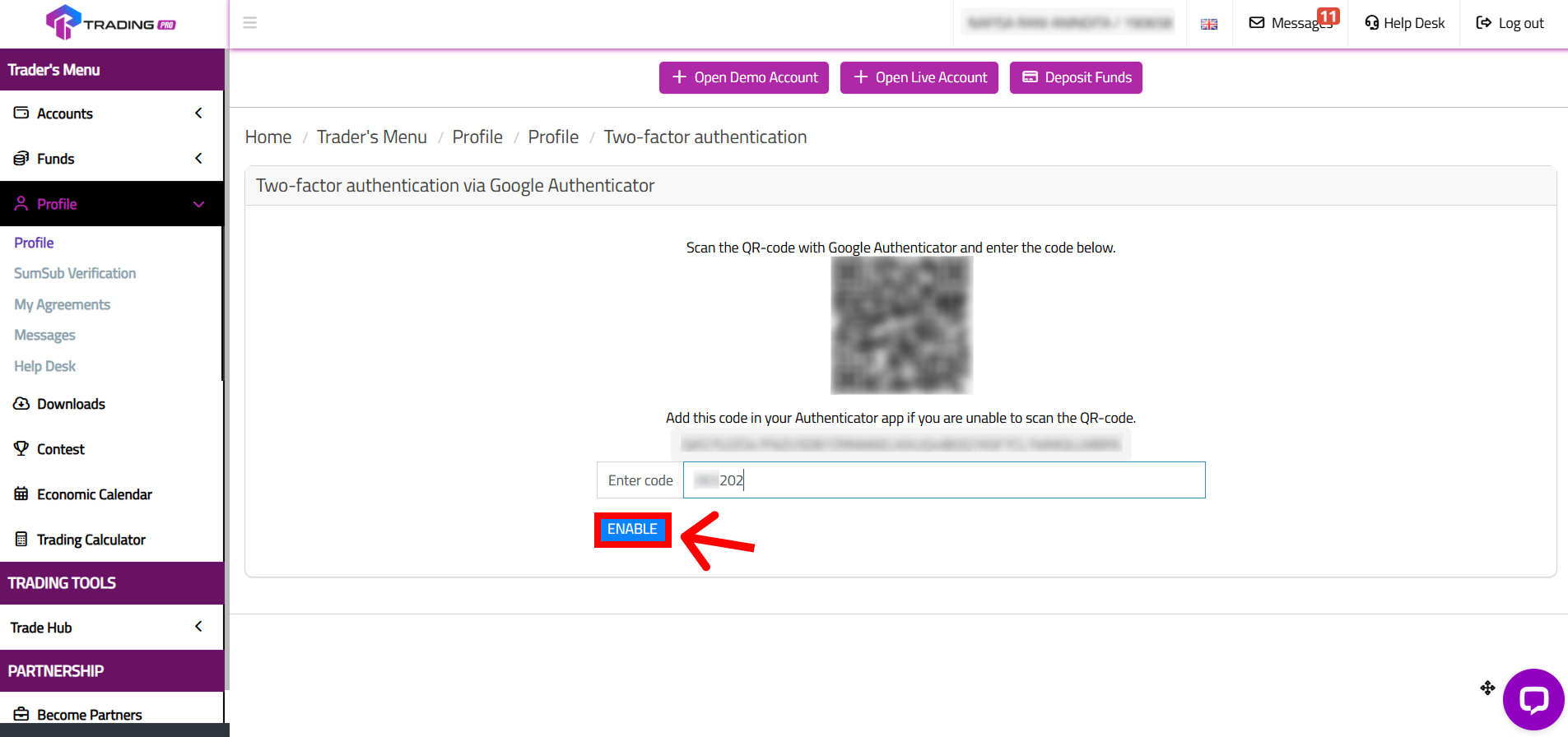
Step 4: Scan the QR Code or Use the Setup Key
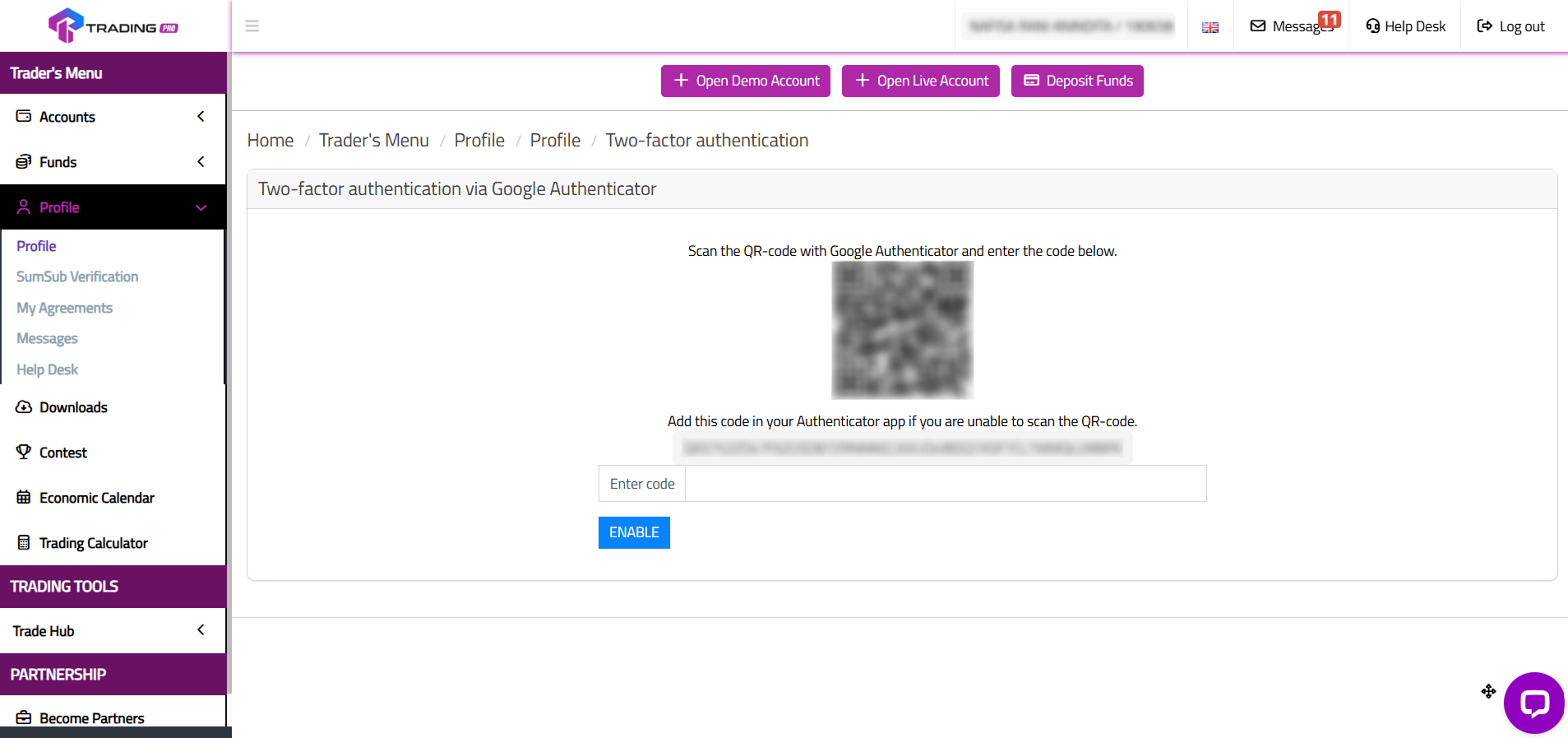
The system will now generate a unique QR code and a setup key. This is the crucial step for linking your TradingPRO account to your authenticator app.
Now, open the Google Authenticator app on your phone and tap the '+' icon. You have two options:
- Scan a QR code: This is the easiest method. Simply point your phone's camera at the QR code on your screen.
- Enter a setup key: If you cannot scan the QR code, you can manually type the code shown on the screen (often called the "what is authenticator key").
Step 5: Enter the 6-Digit Code to Finalize Setup
Once you scan the QR code or enter the key, your authenticator app will immediately create a new entry for "[NUMBERS]@TRADING PRO" and will start generating a new 6-digit code every 30 seconds.
Go back to the TradingPRO page. In the field at the bottom, enter the 6-digit code currently displayed on your authenticator app and click 'Enable'.
Step 6: Confirmation
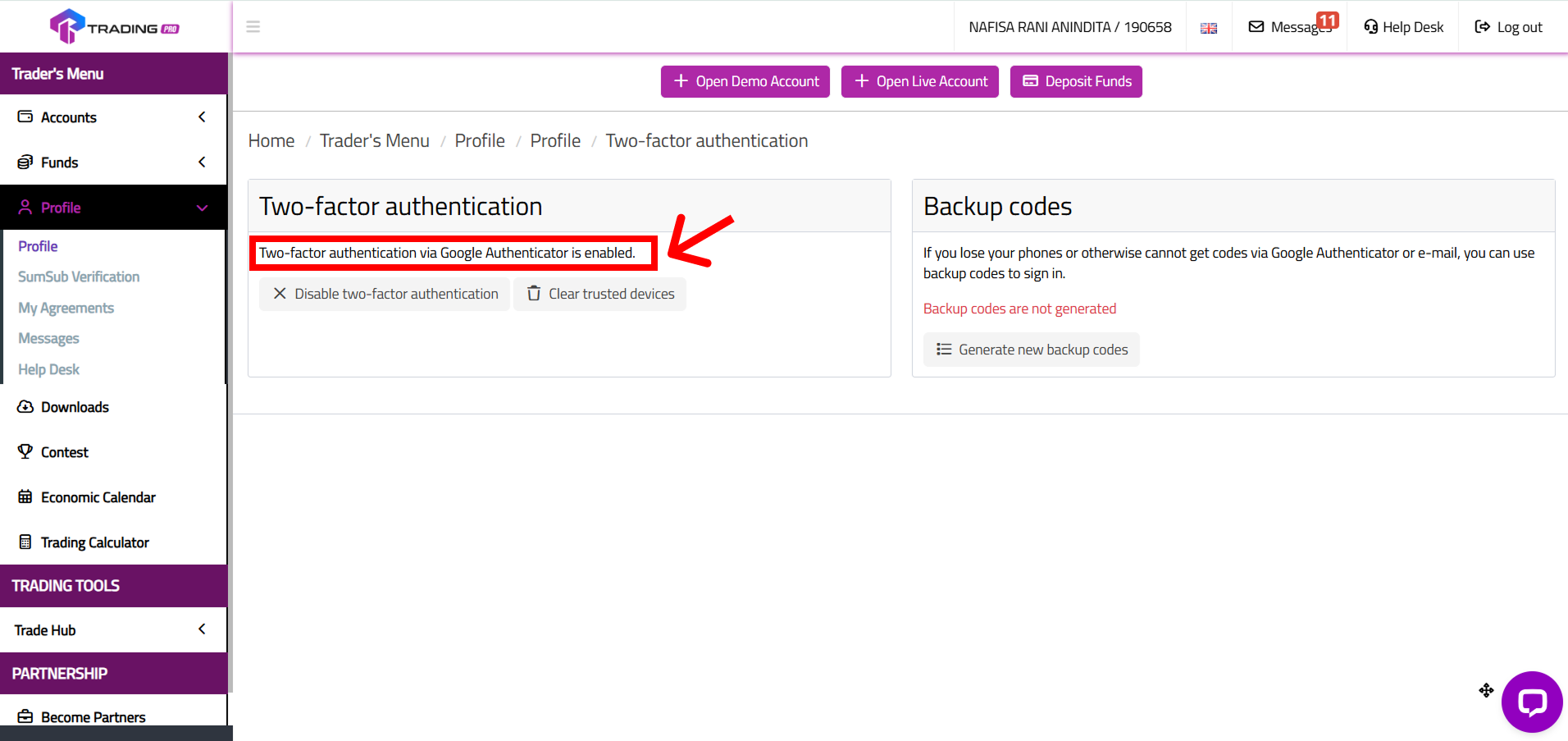
Congratulations! Your account is now protected with Two-Factor Authentication. You will see a success message confirming that 2FA has been enabled. From now on, every time you log in, you will be asked to provide a code from your authenticator app after entering your password.
What If I Lost My Google Authenticator?
Losing your phone can be stressful, but your TradingPRO account will remain secure. If you have a lost google authenticator issue, you will need to initiate a 2FA reset. Please contact our Customer Support team directly, and they will guide you through a secure manual process to verify your identity and disable the old 2FA so you can set it up on your new device.
Secure Your Account Today
Activating 2FA is the single most effective step you can take to enhance your forex account security. It is fast, easy, and provides invaluable peace of mind.
Log In to Your Client Portal and Enable 2FA Now!
Connect with the TradingPRO Community
Stay connected with us for more security tips, platform updates, and global market insights:


